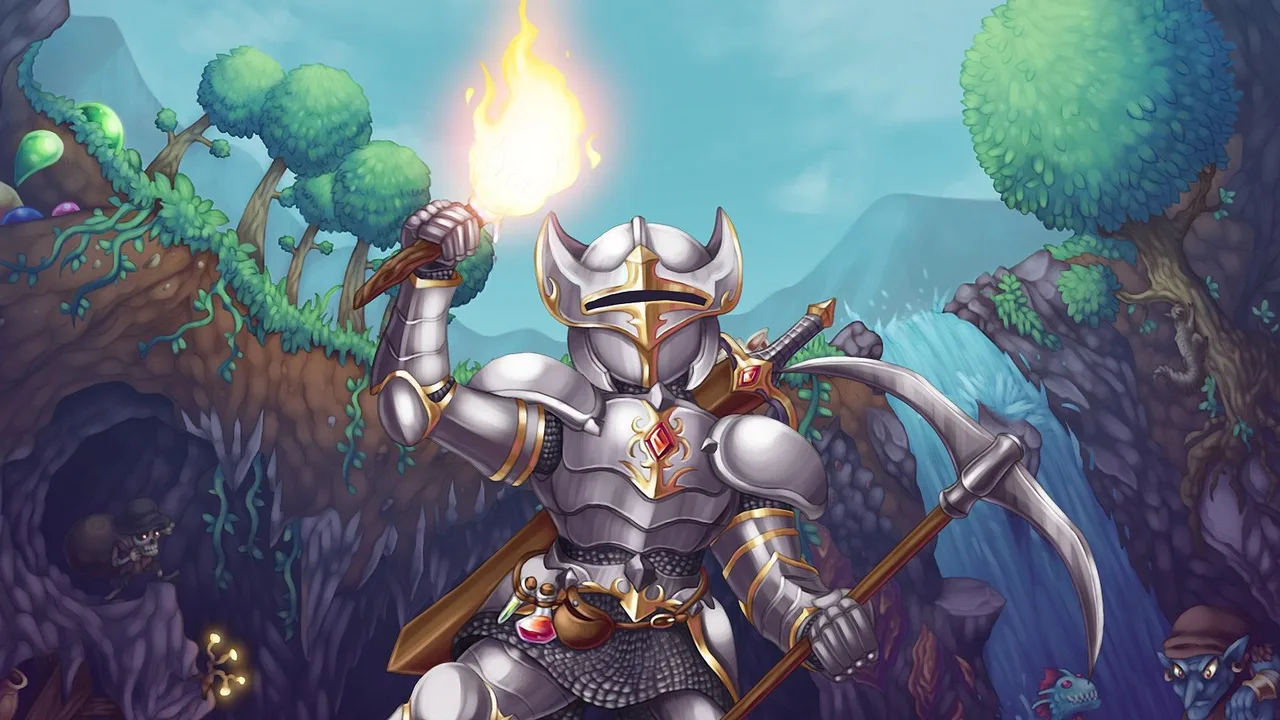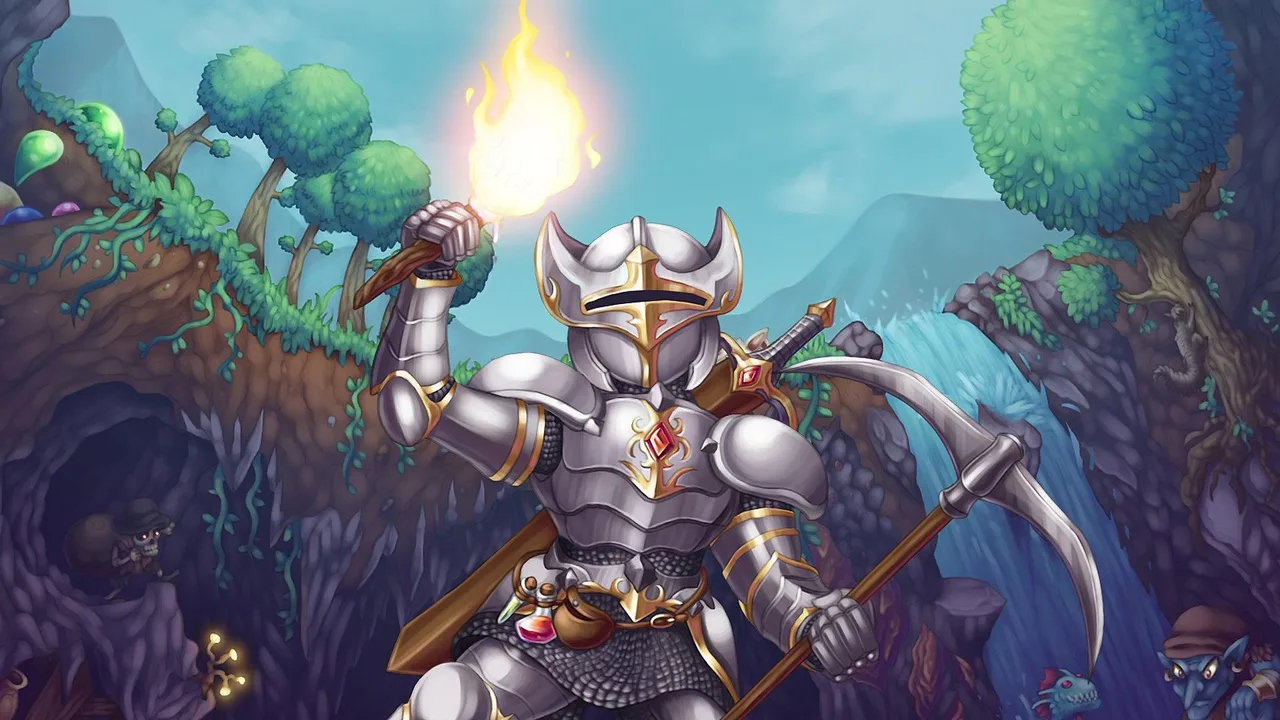

Operating a thriving multiplayer server or managing an offline creative sandbox in Re-Logic's legendary 2D adventure requires mastery over server controls, administrative permissions, and developer parameters. With the release of Terraria 1.4.4+ (Labor of Love), dedicated server administrators and Journey Mode adventurers can manipulate world time, weather events, hostile entity densities, and inventory allocations instantly.
Technical Specifications & Engine Overview
| Game Title | Terraria |
|---|---|
| Engine & Version | Custom C# / FNA Engine v1.4.4.9+ (Labor of Love) |
| Platform / OS | Windows PC / Linux / macOS / Steam |
| Developer & Publisher | Re-Logic / 505 Games |
| Console Mode & Anti-Cheat | Server Administrator Terminal & Journey Mode Powers (Single-Player & Dedicated Host) |
Step 1: Setup Instructions & Enabling Server Console
Unlike traditional console ports that hide developer settings behind obfuscated menus, Terraria provides two primary pathways to command-level authority. In local single-player environments, creating a Journey Mode character grants immediate access to the built-in creative panel. In multiplayer environments, deploying a TShock for Terraria dedicated server provides an enterprise-grade administrative terminal.
To configure administrative authority on a dedicated TShock server on Windows:
- Download the verified TShock release from official developer repositories and extract the archive to your server directory.
- Launch
TerrariaServer.exe. During the initial initialization cycle, the terminal will display a temporary setup authentication code. - Launch Terraria on your PC, join the server via
127.0.0.1:7777, press Enter to open chat, and type/setup [code]. - Register your primary super-administrator account by typing
/user add <username> <password> admin. - Authenticate whenever joining the server by issuing
/login <username> <password>. Once authenticated, all slash commands execute instantly.
Journey Mode Creative Powers Notice
If you are playing in a private single-player world without hosting a dedicated server, you do not need TShock. Open your inventory, click the golden bunny helmet icon located on the far left edge of the hotbar, and access real-time controls for godmode invulnerability, 0.1x to 10x placement reach, infection spread toggles, time acceleration, and infinite item replication.
Core Server Administrator & Environment Commands
Maintaining server equilibrium requires rapid intervention when rogue bosses spawn or excessive item drops cause local entity lag. The following verified slash commands allow administrators to manage global parameters without restarting the server daemon:
-
Invulnerability Toggle: Enter
/godmodeto toggle complete immunity from hostile enemy contact, projectile bursts, lava immersion, and falling tile traps. -
Hostile Entity Purge: Enter
/butcherto eliminate all active enemy entities across loaded world sectors. To clear all entities including passive town NPCs and town bunnies, use/butcher -f. -
Liquid Fluid Physics Settle: Enter
/settlewhen large-scale mining or obsidian generators create cascading liquid calculations that drop server tick rates. -
World Time Clock Manipulation: Use
/time noonor/time midnightto immediately transition into day or night without waiting for natural solar progression. -
Weather & Invasion Control: Initiate or suppress weather cycles using
/rain startor/rain stop, and trigger challenging horde invasions via/bloodmoonor/eclipse.
Direct Item Spawning & Inventory Allocation Syntax
TShock allows administrators to grant specific weapons, rare accessories, and building materials directly to any active player on the server. The basic syntax follows /item <item_id_or_name> [quantity] [prefix].
For example, typing /item 4956 1 Legendary places a pristine Legendary Zenith sword directly into your first empty inventory slot. Spawning 100 Platinum Coins for trade testing requires simply typing /item 73 100. To equip building teams with endless crafting blocks, issuing /give 2 9999 <player_name> supplies nearly ten thousand Dirt Blocks in a single stack under Terraria 1.4.4's expanded 9999 item stack limit.
TShock Server Region Protection & Anti-Griefing Policies
On public community servers, allowing unrestricted world modification can lead to accidental or malicious structure destruction. TShock features a robust region system that isolates town builds and arenas from unauthorized mining, explosive detonations, and chest looting:
- Stand at the upper-left boundary of your central town and type
/region set 1. - Navigate to the lower-right boundary across the subterranean basement and type
/region set 2. - Register the marked volume by giving it a unique label:
/region define TownCenter. - Lock the area against non-admin modifications with
/region protect TownCenter true. - To permit specific trusted builders access without granting global admin status, use
/region allow <player_name> TownCenter.
Player Moderation, Teleportation & Server Maintenance
Managing player interactions across expansive large worlds requires instantaneous coordinate relocation. When investigating player disputes or helping stranded adventurers, administrators can execute direct teleportation directives:
-
Direct Teleportation: Enter
/tp <player>to move directly to that user's current biome coordinates. -
Summon Player to Admin: Enter
/tphere <player>to bring a player to your current position for group events or trades. -
Return to World Anchor: Enter
/warp spawnto return to the world's primary surface spawn point immediately. -
Disciplinary Enforcement: Disconnect disruptive users with
/kick <player> [reason], or blacklist persistent offenders via/ban <player> [reason]. -
Emergency World Commit: Type
/saveinto chat or the server terminal to force an immediate write of all block modifications and player inventories to disk.
TShock config.json Parameters & Server Architecture Tuning
Operating an enterprise-grade dedicated Terraria server demands fine-tuning the config.json file generated in the root server directory. TShock provides dozens of configurable parameters that determine tick rates, anti-cheat tolerances, and automated backup schedules:
-
MaxSlots & ReservedSlots: Adjusting
"MaxSlots": 32and"ReservedSlots": 4guarantees that verified administrators can always join crowded community worlds even when standard player capacity is fully saturated. -
ServerPort (Default 7777): Setting
"ServerPort": 7777ensures standard client connections. If running multiple server instances on a single machine, increment ports incrementally (e.g. 7778, 7779) and map router port forwarding rules accordingly. -
WorldRollback & BackupInterval: Setting
"BackupInterval": 15forces automated world backups every fifteen minutes, saving rolling snapshots to the/tshock/backups/directory to mitigate the impact of accidental griefing or boss wipeouts. -
AutoSave Interval: Ensure
"AutoSave": trueis maintained. TShock commits the world map binary buffer to disk at regular intervals, preventing tile desynchronization between player clients and the dedicated server daemon. -
DisableInvisPvP: Toggling
"DisableInvisPvP": trueneutralizes invisibility stealth exploits in organized PvP tournaments, ensuring all combatants remain visibly rendered during arena duels. - HardcoreOnly & MediumcoreOnly: Enabling these flags enforces strict character difficulty rules across connecting clients, preventing softcore characters from entering high-stakes hardcore survival realms.
TShock Permission Groups & Multi-Tier User Governance
A secure community server relies on role-based access control (RBAC). TShock organizes permissions into hierarchical user groups, preventing standard players from accessing destructive debug commands while equipping moderators with necessary discipline tools:
- Guest Group (Unregistered): Connecting users who have not registered an account. Restricted to basic movement, block interaction, and standard chat with zero administrative capabilities.
-
Default / Member Group: Authenticated players who have created an account via
/register <password>. Granted access to private messaging, spawn point warping, and personal party management. - Builder / Architect Group: Dedicated construction specialists granted bypass permissions for region protection, infinite wire placement, and paint manipulation within designated building sectors.
-
Moderator Group: Trusted staff members equipped with disciplinary commands including
/kick,/mute,/ban, and player coordinate inspection via/who. -
SuperAdmin Group: Server owners holding full console authority. Capable of reloading server configurations dynamically via
/reload, adjusting difficulty scaling, and spawning any item in the game database.
TShock Whitelisting, IP Filtering & Anti-VPN Protection
When hosting a popular community world, managing incoming traffic prevents griefing before a player even joins. TShock includes native IP whitelisting, connection rate limiting, and VPN protection features that ensure clean server logs:
-
Server Whitelist Enforcement: In
config.json, set"EnableWhitelist": true. Only user accounts explicitly granted access via/whitelist add <player_name>can establish a TCP handshake. -
IP Range Banning: If persistent griefers attempt to evade bans using dynamic mobile connections, administrators can blacklist entire subnet ranges via
/ban ip <ip_address>. -
Max Connections Per IP: Setting
"MaxConnectionsPerIP": 2prevents malicious bots from flooding server sockets with phantom connections that exhaust available bandwidth. - Tile Kill Threshold Anti-Cheat: TShock monitors tile destruction rates. If a modified client attempts to detonate hundreds of dynamite sticks simultaneously, the engine automatically freezes the player and issues a temporary kick.
Mechanical Boss & Hardmode Progression Summoning IDs
Triggering Hardmode boss progression on dedicated servers without waiting for random nocturnal event rolls ensures smooth community raid nights. Administrators can spawn these essential summoning relics on demand:
- Mechanical Eye (Item ID 544): Summons Retinazer and Spazmatism (The Twins) immediately when used between 7:30 PM and 4:30 AM in-game time.
- Mechanical Worm (Item ID 556): Summons The Destroyer subterranean metal wyrm. Ensure players are situated above ground on wooden platform arenas to avoid coiled body segment damage.
- Mechanical Skull (Item ID 557): Summons Skeletron Prime with all four combat limbs active. Defeating all three mechanical titans unlocks natural Chlorophyte Ore generation in the Jungle.
- Clothier Voodoo Doll (Item ID 1133): Equipping this accessory in a social slot allows players to attack the Old Man or Clothier NPC at the Dungeon entrance to challenge Skeletron.
- Guide Voodoo Doll (Item ID 267): Dropping this sacrificial doll into Underworld lava summons the Wall of Flesh to initiate Hardmode world conversion.
Honest Pros & Cons of Terraria Server Admin Cheats
Advantages & Strengths
- Instant recovery from world corruption and catastrophic explosive accidents
- Rapid deployment of multiplayer custom arenas and boss gauntlets
- Defensive region protection against griefers, thieves, and unauthorized explosives
- Full achievement compatibility on official Steam platforms
Drawbacks & Considerations
- Excessive item generation can diminish progression satisfaction for survival players
- Commands like /butcher -f permanently eliminate friendly town NPCs until houses are reoccupied
- Server commands require dedicated server hosting infrastructure or TShock binaries
- Incorrect region syntax can lock administrators out of their own construction zones
Server Save File Hygiene & Corruption Prevention Guide
Dedicated servers running continuously can generate massive world state changes. Because Terraria worlds are stored as singular binary files with the .wld extension, sudden power losses or system crashes during write operations can risk world corruption. Follow these proven operational guidelines:
-
Automate Scheduled Backups: Configure your server hosting platform or local task scheduler to copy the active world file from
~/.local/share/Terraria/Worlds/orDocuments/My Games/Terraria/Worlds/into a separate cold storage folder every 6 hours. -
Execute Clean Shutdowns: Never terminate the server console window via Alt+F4 or Task Manager end process. Always type
exitinto the server terminal, which forces the engine to cleanly disconnect all players, serialize tile modifications, and close database handles properly. -
Avoid Rapid Fluid Resets: Modifying thousands of fluid blocks simultaneously can flood memory buffers. If building large artificial oceans, execute fluid placement in stages and run
/settlebefore spawning additional water or lava volumes.
Whether you are managing an expansive community survival world or designing customized PvP arenas, server console commands provide total creative and administrative mastery over Terraria. For more verified guides, consult our Cheat Codes Directory and learn more about our rigorous testing protocols on our About CoolModAPK page. Official game updates, patch notes, and development insights can be reviewed via the Terraria Steam Store Page.